Apple’s iOS has several safeguards in place to prevent apps from accessing sensitive functions, such as the camera and microphone. While these measures help keep our data away from companies like Meta, they can sometimes cause issues, such as when you can’t see the “Allow Camera Access” option onInstagram. If you are facing this issue, don’t worry. Thisguidewill help you with the easiest ways to enable camera access forInstagram.
Allow Camera Access to Instagram
This article covers several different ways to enable camera access toInstagram. We recommend trying all the solutions to determine which works best.
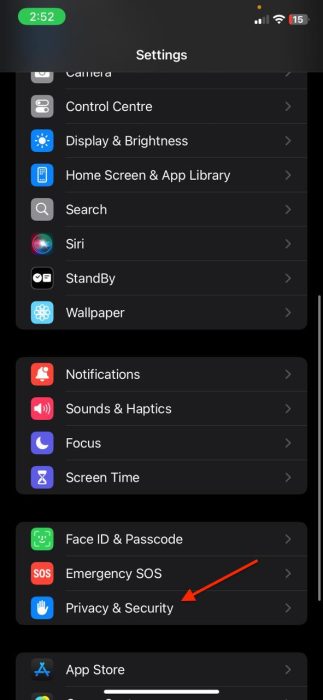
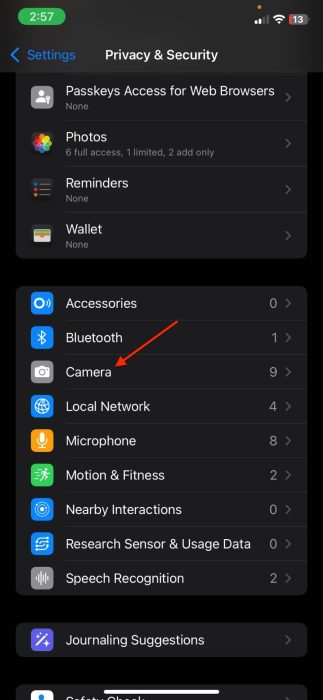
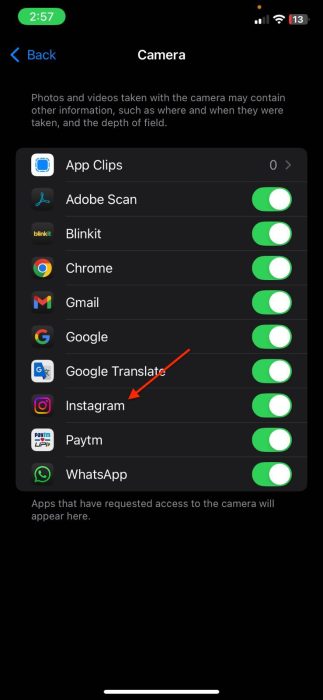
1. Check Privacy & Security Settings
If the camera access issue is specific to theInstagram app, the easiest solution would be to change the iPhone’s Privacy & Security settings. These settings control which apps can access the camera, and if you accidentally didn’t grant Instagram camera permissions after installing, you can do that here. Here is how:
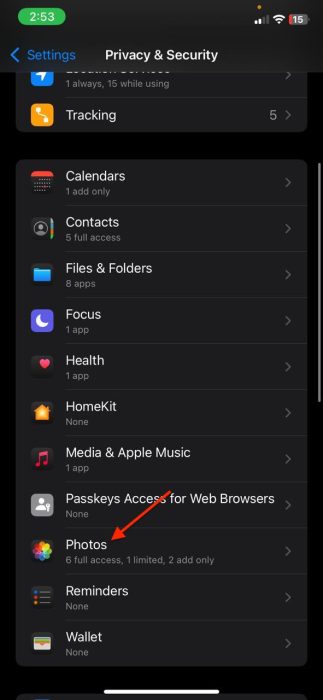
2. Check App Permissions
iOS also allows you to check and tinker with individual app permissions. To do so:
3. Check Screen Time Settings
Screen Time on iPhone is a handy feature that enables you to restrict the functionalities of apps after a specified time. However, if you already set Screen Time restrictions, they might be the reason why you can’t access the camera on Instagram. Here is how you can check:
4. Try Restarting your iPhone
If Instagram still cannot access the camera, there could be a technical glitch with the app. In such cases, it is recommended to restart your iPhone. Here is how:
5. Update Instagram
If your friends and family also cannot see the “Allow Camera Access” option, then the issue could relate to the Instagram app. Meta usually releases a new update to fix such problems. To update Instagram:
6. Install the latest iOS version
Sometimes, the new iOS version introduces bugs that can cause the camera permissions system for apps to break down. In such cases, Apple pushes a new update to fix the issue. Here is how you may install the latest iOS version:
Frequently Asked Questions (FAQs)
If the camera isn’t showing on Instagram, go toSettings > Apps > Instagram, enable the Camera toggle, and select Full Access for Photos.
In most cases, yes. Start by enabling camera access for Instagram in the Settings app. If that doesn’t work, try updating the app or restarting your iPhone.
If you can’t access the camera from any app, go toSettings > Privacy & Security > Cameraand enable the camera toggle.
Conclusion
So there you have it—the easiest ways to fix the camera access issue for Instagram. Now, you may get back to capturing moments from the Instagram app and posting them directly without issues.