So you ditched Windows and clean installedLinuxto learn and lost the motivation because it’s too complicated to use? And now you don’t know how to create aWindows 10 bootable USBin Linux? We’re here to help! In this article, let’s look at how you can create a Windows 10 bootable USB in Linux.
Windows is available for free on Microsoft’s official website. You can download it by heading over to thislink. After that, you will need to select the language of the OS and the variant (32-bit/64-bit). ensure you have a stable internet connection, or else the zip might end up being corrupt if the download fails or pauses in between.
Also Read:Moving To Linux From Windows: Is Linux Hard To Use?
Creating A Windows 10 Bootable USB Using WoeUSB
WoeUSB is an amazing tool that can help youcreate a Windows 10 bootable USB, swiftly. All you need to do is:
1 . Download WoeUSB Zip by clicking on thislink.
2. After downloading, extract the zip file.
You’ll find two files with.debextension. Install both the files by double-clicking on each of them.
Now, search forDisksin the list of apps and open it.
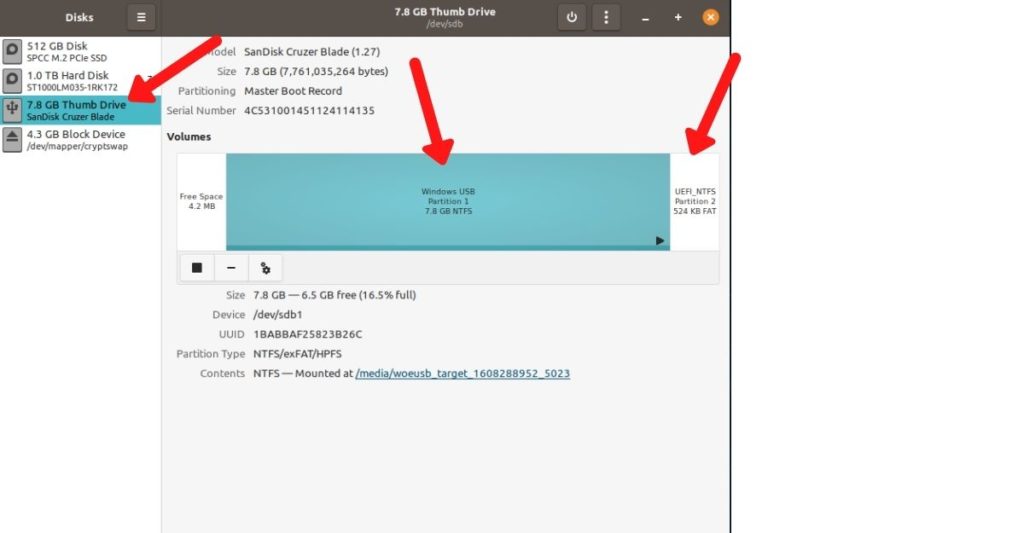
Plug-in your USB drive. In the list of drives, find your USB drive.
If your drive has too many partitions, select every drive and click on the “—” icon at the bottom.

Now, enter the following command. Change the path “home/focusblast/Desktop/Win10_20H2_v2_English_x64.iso” to the path where you have downloaded the ISO. To do this, just drag and drop the ISO onto the terminal screen. Remember, if you mess up the command, you will need to restart the system and repeat the process from the beginning.
Now, all you need to do is patiently wait for the entire process to complete. Then boot from the USB using the boot options, and you’re able to proceed with the Windows 10 installation process.

- If you encounter an error, head over to the Disks application, click on the double-gear icons below the partition tables, click on Format.
1. BalenaEtcher
BalenaEtcher is one of the best tools tomake bootable USBs. Apart from its visually appealing UI, it is fast, cross-platform, and open-source.
One of the best things about it is Validated Flashing, which alerts you about your SD Card/Flashdrive being corrupt, saving a lot of time from wondering why your device isn’t booting.

Head over to theofficial websiteand click on the download button; this will download a zip file. Extract it and double-click on the app image to run BalenaEtcher.
2. Popsicle
Compared to BalenaEtcher, Popsicle doesn’t come with many bells and whistles, but it does what it’s intended to do.
If you’re on Pop!_OS, Popsicle is already installed on your PC. However, if you’re using any Ubuntu-based distro, since Pop!_OS is based on Ubuntu, you’re able to install it using the following commands.
Once you’re done installing Popsicle, remove the repository, or else it will annoy you by asking to upgrade to the newer version of Pop!_OS.
3. GNOME Multi-Writer
Another clean and efficient tool for making bootable USBs. Like Popsicle, it can write similar ISO on more than one USB storage device simultaneously.
To install GNOME Multi-Writer, enter the following command.
Faced any issues? Let us know in the comments section below, and we’ll attempt to help.
Are there any other great USB flashing tools that we missed? Let us know in the comments section below.
