Short Bytes:Do you know the exact Linux kernel and distro release version of your Linux system? While you can find the kernel version using the uname-r command on all systems, distro version command varies from distribution to distribution. However, most of them display this info using /etc/osname-release.
For the new users, in the past, we have prepared aLinux learning guidethat introduces the basic concepts and how to accomplish many basic tasks on a Linux computer. There’s another simple thing that a new user needs to know–the Linux kernel version and distro release version of their system.

While it might look like a few fun commands to the beginners, this information might also be useful for experienced users while connecting to some server, fixing a naughty bug, etc. Just like any other thing in Linux, one can know about the Linux kernel version and distro release version in many ways.
How to find the Linux kernel version?
Do you wish to simply know the Linux kernel version on your Ubuntu, or Fedora, or any other Linux distro? Well, know the Linux kernel version is simple and it can be universally detected using uname.
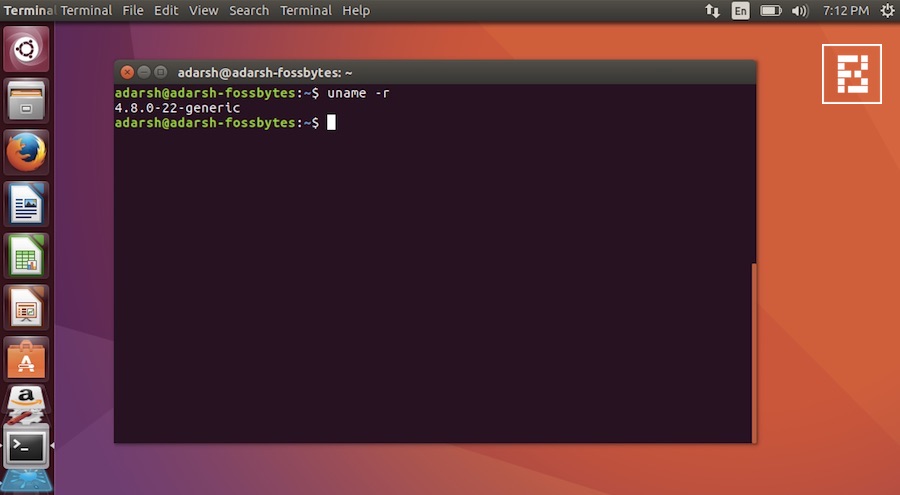
Just open the terminal and run the following command:

Here’s the output I got on my Ubuntu 16.10 Yakkety Yak system that’s running Linux kernel 4.8:
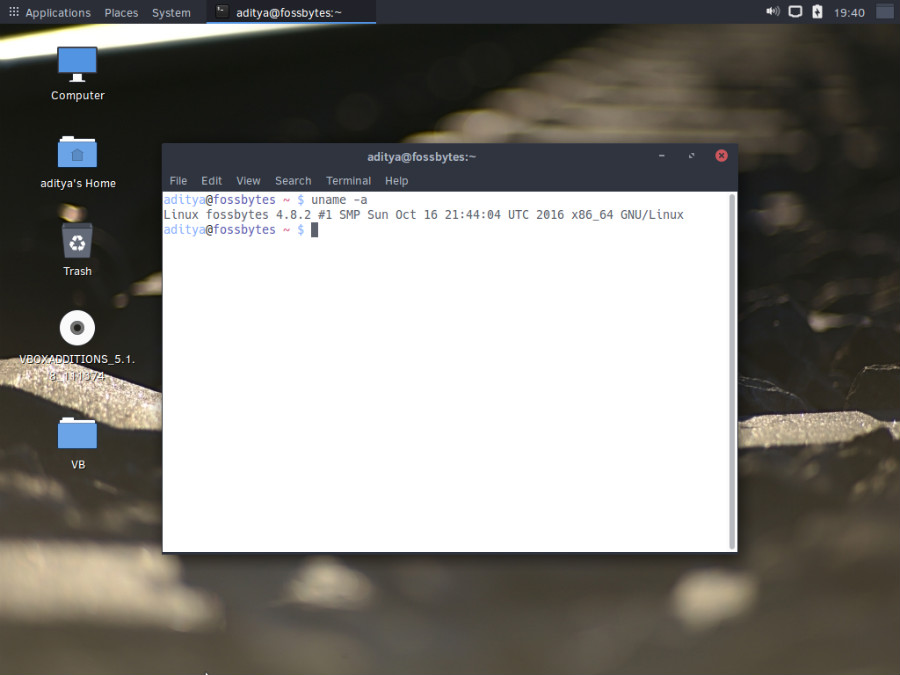
A similar output on a Solus system usinguname -agives the following output:
When you rununame -rin Lubuntu:
How to find the distribution release version?
There isn’t a single command to know the distribution and version of your Linux-based operating system. Probably, this is the reason that inspired me to write this post. LSB tools can easily provide this information but they aren’t installed on every Linux distribution.
Well, if you’re running Ubuntu, you may get this information by running the following command in your terminal:
Ubuntu, and other distros also provide the release version information via /etc/osname-release command. Here’s how to check the distro version on different systems:
Red Hat, Older CentOS:
Slackware:
For other distros:
As you may see above, most popular distros follow a pattern. If you don’t find the name of your distro in the above-mentioned list, you can follow $ cat /etc/*{release,version} pattern.
There’s another way of finding the Linux distro version using /etc/issue. This might work on some systems; some systems might show access notification popups.

Did we miss something? Don’t forget to add your feedback in the comments section below.
