It doesn’t matter if you own a PS4 or a PS5 console; you may only make the most of it when you sign in with your PSN account. Meanwhile, if you do not know or are having trouble signing in with your PSN account, this guide will help you with the basic process.
Additionally, by logging in with your PSN account on your PS console, you’ll be able to stream movies and music, join online parties with your PS friends, and play multiplayer games online. Also, to download games from the PlayStation store, one must be logged in to their PSN account. Meanwhile, the steps to log in to your PSN account will vary depending on which console you have; considering this, we’ll mention the steps to log in to PS4 and PS5 with your PSN account separately.

Signing into a PSN account on PS4
1. Go to PlayStationSettings.
In the settings menu, navigate toAccount Managementand click on it.
Now, selectSign inand enter your email address and password if you already have a PSN account.

- If you do not have a PSN account and are logged into the console for the first time, you’ll see the option to create a PSN account and log in with it.
Signing into a PSN account on PS5
Go to PlayStationSettings. (In the top right corner of the home screen)
Navigate toUsers and Accountsand click on it.
In users and accounts settings, selectAccountand then click onSign in.
Fill in the details of your PSN account and sign in.
Set up two-step verification on your PSN account
If you wish to add an extra layer of protection to your PSN account, setting up two-step verification to your PSN account is handy. With two-step verification, no one other than you will be able to log into your PSN account since you’ll be asked to enter a verification code sent to your phone or email address.
On a PS4 console
1. Go to the console’sSettings.
2. Navigate toAccount Management.
2. Now, selectAccount Informationand click on it.
3. In the account information menu, click onSecurityand select2-Step verification.
Next, activate the service and choose the medium through which you want to receive the verification code.
You’ll get an option to choose from an authenticator app; you’ll need to save the codes for any future logins into your PSN account.
On a PS5 console
1. Go to PS5’sSettings.
Navigate toUsers and Accounts.
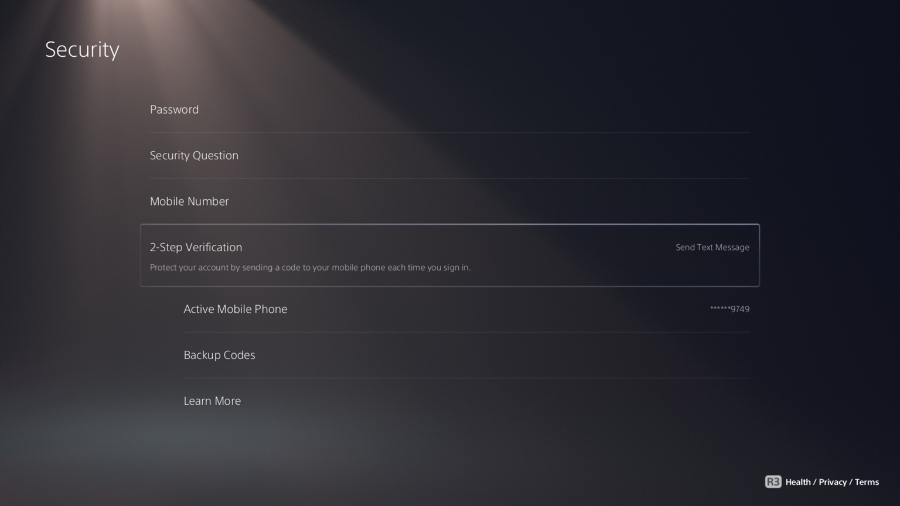
Once in the users and accounts menu, click onSecurityand select2-Step verification.
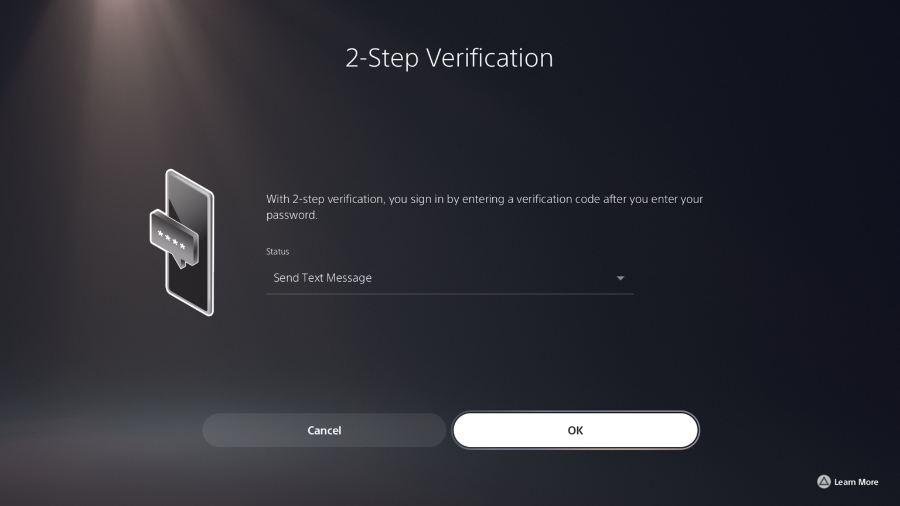
Activate the 2-Step verification and choose the method of getting the verification code. Similarly, you may save the authenticator codes to log in to your PSN account later.
Wrapping up
There you have it, simple steps to help you progress by signing in to your PSN account and crease out any bumps if you encounter them along the way. Also, 2-Step verification is important to ensure that your account is safe and secure, allowing for no unknown login attempts into your PSN account.
