How to Transfer Facebook Events to Google Calendar
For many people, Google Calendar is the first place to check for upcoming events. But when I join a Facebook event, it stays on the Facebook events page and only notifies me right before the event is about to begin. Sometimes, I completely forget about it and hop on to some other work. This problem came to an end with the recentFacebook update on Data Transferusing which you can now transfer Facebook events to Google Calendar.
While it is not exactly two-way sync between two platforms, it does provides an option to transfer the events data to Google Calendar. So, I don’t need to manually create an event on Google Calendar copying all the details from Facebook.

Note:To transfer Facebook events to Google Calendar, Facebook needs permission to see, edit, create, and delete events as Google doesn’t provide the option to create. So proceed if you are comfortable sharing Google Calendar events with Facebook.
How to Transfer Facebook Events to Google Calendar on Desktop (Web)
1.OpenFacebookand click on thedown arrowat the top right corner. In the pop-up menu, click onSettings and Privacy.
2.Then select the optionSettingsunder the Settings & Privacy menu.
3.In Settings, Click on theYour Facebook Informationoption in the left sidebar. Then click onViewbesideTransfer a copy of your information.
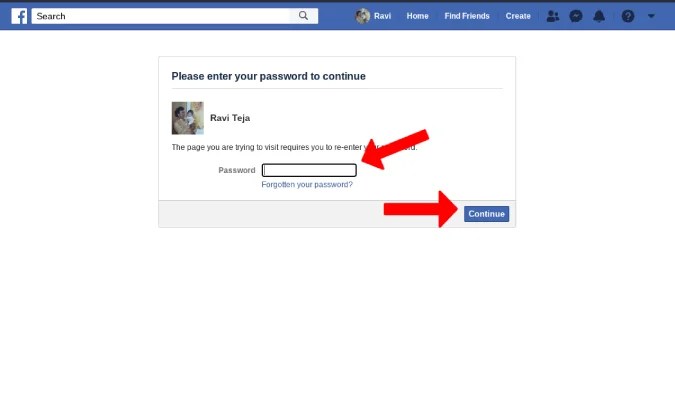
4.It will prompt for the Facebook password for the verification. Enter the password and clickContinue.

5.Once done, it will open Facebook’s data transfer tool. Click onChoose Destinationand selectGoogle Calendarin the dropdown menu. Once done, click onNext Step.
6.Here you can choose the data to transfer. You can either chooseAll eventsorSelect date rangeto transfer only events from a specific time duration. Once done, click onNext Step.

7.Now you need to connect Facebook and Google to continue the transfer. To do that, click onConnect and Start Transferbutton.
8.Then log in with your Google account to which you want to send these event details.
9.Here, enable the checkbox besideSee, edit, share and permanently delete all the calendars you’re able to access using Google Calendar. Facebook needs permission to create the events on your Google Calendar, but Google doesn’t providecreatepermission. So ensure you trust Facebook with your Google Calendar data before proceeding. Once done, click onContinue.
- Facebook will take some time to transfer the events data to Google Calendar.

Once the process is complete, you should see the Facebook events on your Google Calendar.
How to Transfer Facebook Events to Google Calendar on Mobile (Android & iOS)
The process of transferring events from Facebook to Google Calendar is a bit different on mobile compared to the web. Here’s how you may transfer the events on the mobile in both Android and iOS.
1.First, open theFacebook appand tap on the hamburger menu at the top right. In the menu, scroll down and go toSettings & Privacy > Settings.
2.In the Settings & Privacy page, scroll down toYour Informationsection and select theTransfer a Copy of Your Informationoption. On the next page, tap onNextto start the transfer process.
3.Choose theGoogle Calendaroption and then selectAll eventsor select a specificDate Range. Once done, tap onNext.
4.Now you need to connect Facebook and Google to continue the transfer. To do that, tap on theConnectbutton. Then log in to your Google account where you want to transfer the Facebook events.
5.Here, enable the checkbox besideSee, edit, share and permanently delete all the calendars you can access using Google Calendar. Facebook needs permission to create events on your Google Calendar, but Google doesn’t provide permission to create. So ensure you trust Facebook with your Google Calendar data before moving forward. Once done, hitContinue.
6.Then tap onConfirm Transferbutton to start transferring. This may take some time.
Once the process is completed, you can see the Facebook events on your Google Calendar.
Wrap up – Transfer Facebook Events to Google Calendar
Now, whenever you join a new event on Facebook, you will have to go through this process manually but quickly. There is still no way to sync data between the two services. But the event will be transferred to Google Calendar without manually entering the details. Also, you can select All events options to transfer every time as the tool is smart enough to omit events that are already added. So it will not create duplicate entries of the same events when you transfer data repeatedly.
Also Read:
Ravi Teja KNTS
Tech writer with over 4 years of experience at TechWiser, where he has authored more than 700 articles on AI, Google apps, Chrome OS, Discord, and Android. His journey started with a passion for discussing technology and helping others in online forums, which naturally grew into a career in tech journalism. Ravi’s writing focuses on simplifying technology, making it accessible and jargon-free for readers. When he’s not breaking down the latest tech, he’s often immersed in a classic film – a true cinephile at heart.
