Microsoft wants all of itsWindows 11users to switch to its up-to-date Chromium-based browser, Edge. In other words, it’s the same treatment as Internet Explorer, but only modern. However,Microsoft Edgehas gone through several improvements and can easily have the title of one of the best browsers right now.
Although, personal preference is quite important. It’s only fair that some users would not want to use Edge. And since Microsoftdoesn’t allowusers to uninstall Microsoft Edge from Windows directly, here’s how you may do it easily.

Remove Microsoft Edge using Command Prompt
The easiest way to get rid of Microsoft Edge is to uninstall it via the Command Prompt. Let us have a look at the detailed process regarding the same.
- First, you’ll need to know Edge’s version number installed on your computer. Open Microsoft Edge and click on the 3-dot menu icon and click onSettings.
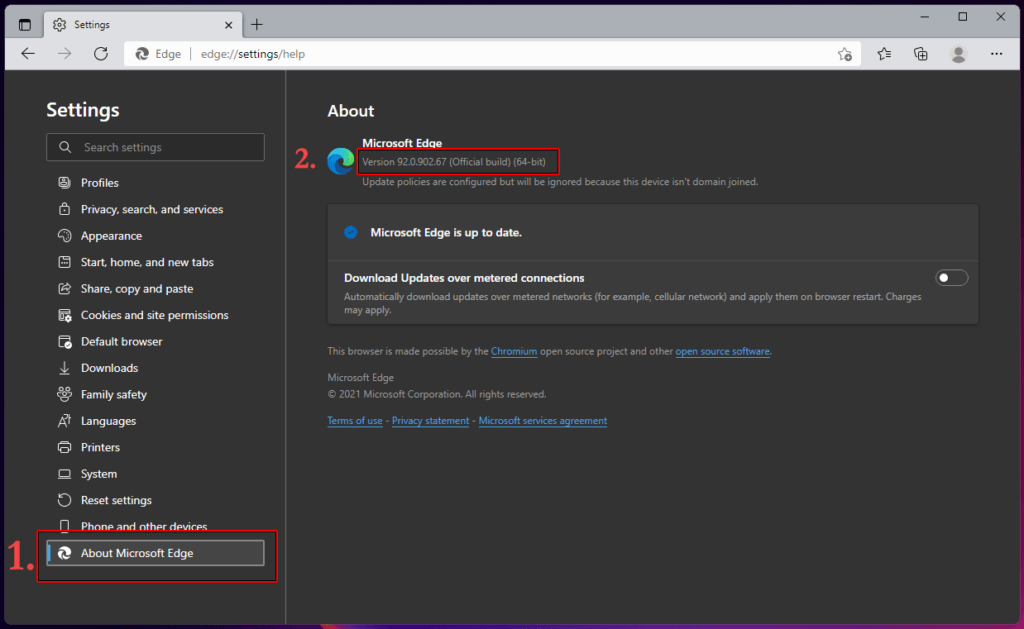
Once there, choose “About Microsoft Edge” from the left sidebar.
Next, on the About page, remember the version number shown in the photo below.
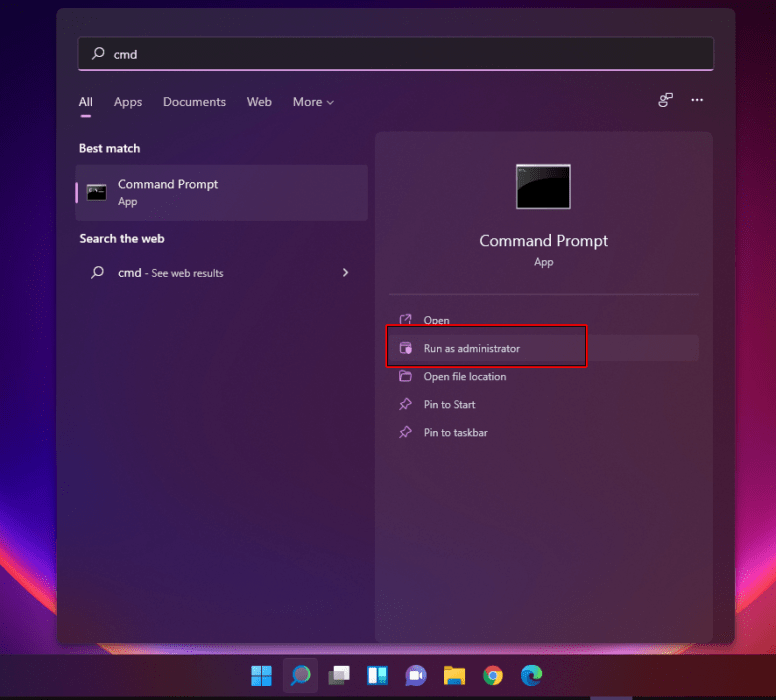
Now, open theStart Menuand type “cmd” in the search bar.
Further, when the Command Prompt result shows up, click onRun as administrator.
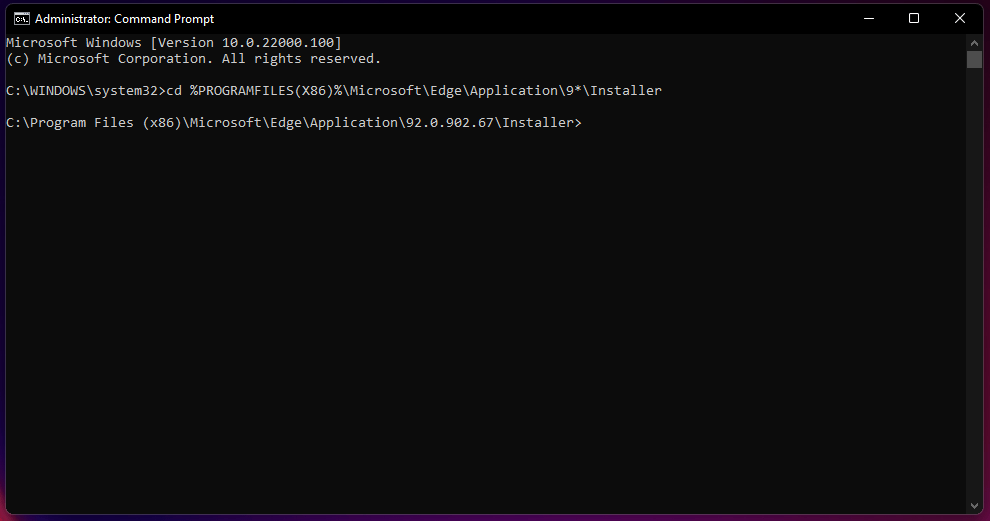
- In the terminal, type the following command and pressEnter.
Note:We’re using ‘9*’ instead of the full version number as the current number begins with 9. You can always type the complete version number, which is 92.0.902.67, in our screenshot.
- Finally, paste the following command and hitEnterto uninstall Microsoft Edge.
Voila! You’ve now successfully uninstalled Microsoft Edge. After a restart, you’ll see no signs of Microsoft Edge present on your Windows 11 computer.
Did you find this guide helpful? Check our collection ofWindows 11 guides.
