With theMicrosoft “Your Phone”screen mirroring app live on theWindows Store, Dell has now laid out its cards as well. The “Dell Mobile Connect app,” earlier only available for Dell users, is now up and running in the Microsoft Store.
First announced at CES 2018, just like allother screen mirroring apps, Dell Mobile Connect can be used to take calls, send and receive text messages, access your contacts, and get mobile app notifications.
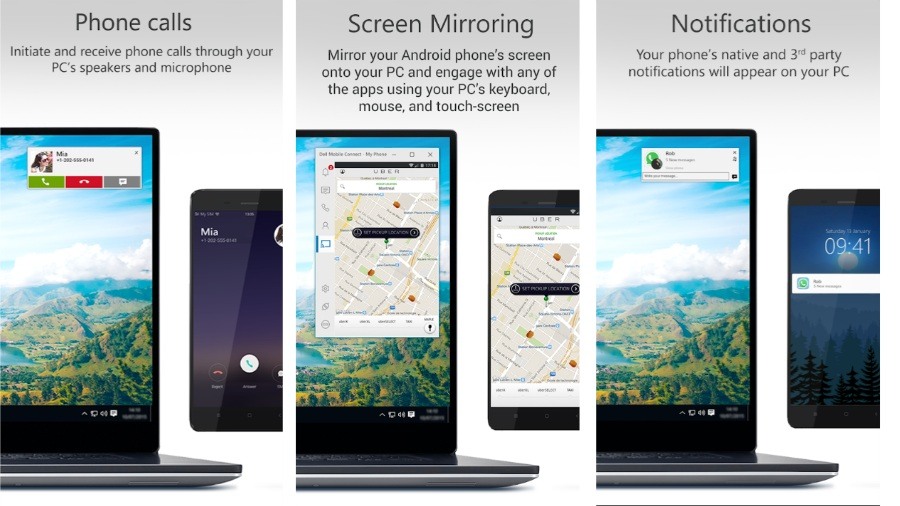
The app even mirrors your phone’s screen onto your PC. The best part about the screen mirroring app is that it lets you mirror your device wirelessly, which means you don’t need a USB cable. Although mirror wirelessly also suggests a strong WiFi network, i.e., the app responsiveness will depend upon your Wifi network speed.
How to set up the Dell Mobile Connect App –
Note: The mirroring app is not compatible with Dell laptops purchased before January 2018. However, expansion on those PC is “under investigation,” says Dell official page.
How to use the Dell Mobile Connect App –
Voila! Now you access all the incoming notifications, calls, messages, and even mirror your Android/iOS screen on the desktop.
While the Dell Mobile Connect app does wonders for anyone looking to mirror their smartphone’s screen on laptop/PC, there are a few issues I discovered about the app. For instance, the connection doesn’t seem to be strong enough. If you’ll connect your phone, it will fail at least twice every ten tries.
Then the mirroring itself regardless of my network remarkable data speed, the mirroring seems subpar. Like mine was literally unbearable, but you may see different results.
All things considered, the mirroring app from Dell is a good start and if the company keeps on updating it, it might turn out to be amazing. As for now, it can’t even beat mylist of best screen mirroring appsfor Android.
